Overview PRESENTATION Enroll into EXCEL+ here LinkedIn Learning
Program Overview
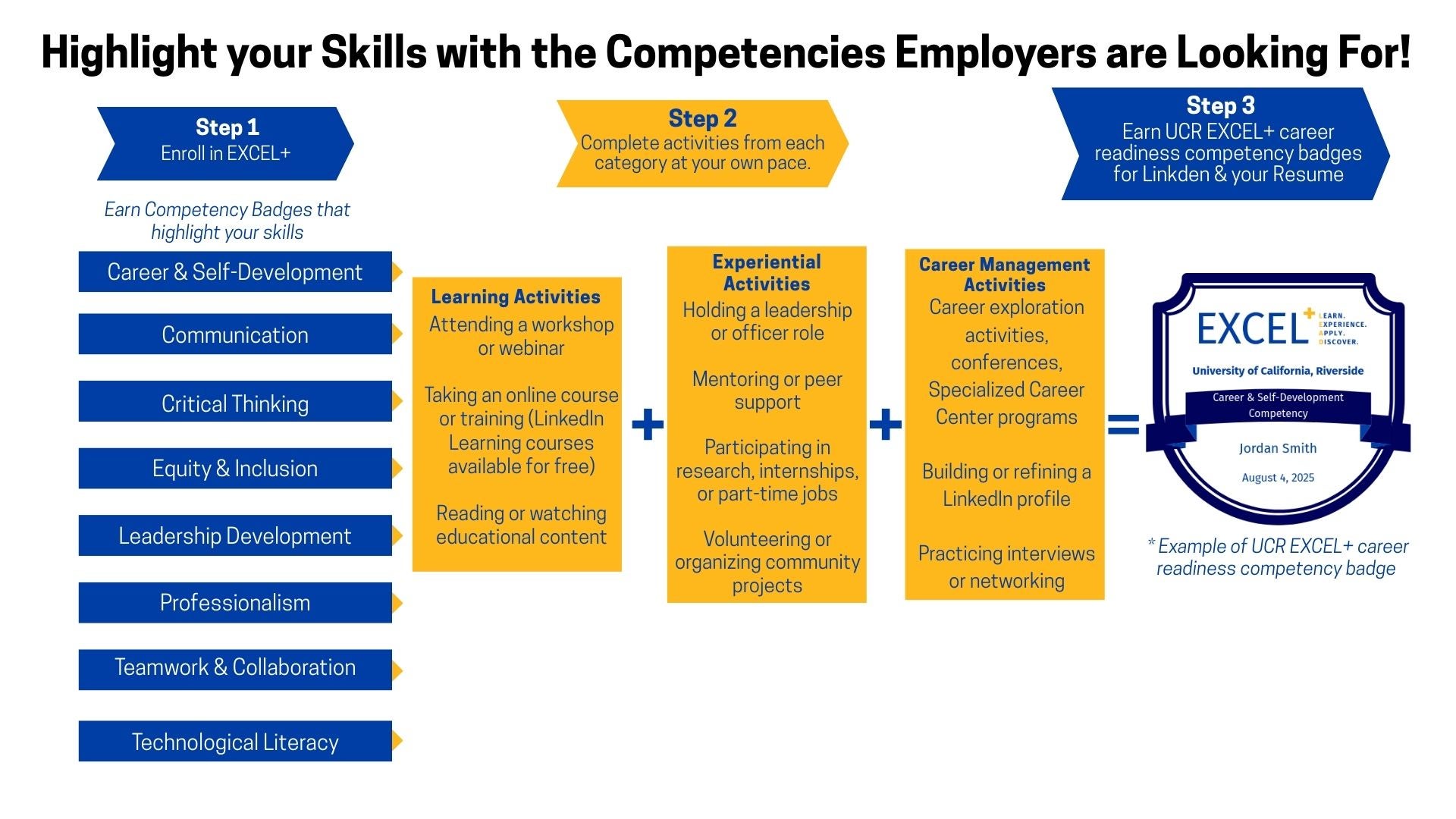
The EXCEL+ Career Readiness and Leadership Program helps UCR students translate their involvement in high-impact programs and extracurricular activities into tangible skills that employers and graduate schools value. Gain a competitive edge by developing essential competencies such as Communication, Critical Thinking, Teamwork, Professionalism, Technology, Leadership, Equity & Inclusion, and Career & Self-Development—setting you up for success beyond graduation!
Target Audience
All UCR undergraduate students who are in good academic standing are welcome to participate in this program. Sign-ups are year-round and continuous.
Support, Resources, and Long-Term Impact
-
Boost your resume and LinkedIn profile: Earn digital badges for each competency you develop, showcasing your skills to potential employers and graduate schools. These official badges can be directly linked to your LinkedIn profile, providing a clear and credible way to demonstrate your accomplishments.
-
Prepare for career success: Access workshops, online resources, and to help you master essential skills such as resume building, interviewing, networking, and more.
-
Tilga Professional Internship Funding: Eligible students may receive funding to help cover costs related to unpaid or underpaid internships at nonprofit organizations, government agencies, and small businesses. Students who are active in EXCEL+ receive priority consideration.
-
Get recognized for your achievements: Earn Dean’s, Provost’s, or even Chancellor’s Student Leader Awards for completing multiple competencies!
EXCEL+ Frequently Asked Questions:
Getting Started with EXCEL+
-
How do I enroll in EXCEL+?
Visit the EXCEL+ website and select the enrollment option. Log in using your UCR NetID and follow the instructions to join. (Direct enrollment link: https://elearn.ucr.edu/enroll/74X3P6)
After enrolling, refresh your Canvas dashboard. You should see “The EXCEL+ Career Readiness and Leadership Program” listed as one of your Canvas courses.
Enrollment does not mean you must complete the entire program during one quarter. You can continue making progress throughout your time at UCR unless your course or program has given you a specific deadline.
-
How can I contact CUREL for support?
Students can contact CUREL for questions or individual EXCEL+ support in the following ways:
Schedule an EXCEL+ consultation
Visit the CUREL consultation webpage:
https://engage.ucr.edu/schedule-11-consultations-your-program
Select the Schedule Time for EXCEL+ booking section.
Send an email
Email CUREL at engage@ucr.edu.
Send a message through Canvas
Use the Inbox feature in Canvas to send a message directly through the EXCEL+ course. Select EXCEL+ as the course and explain which competency or activity you are working toward.
Students may also use the message or comment box near their activity submission when asking a question about a specific submission.
When requesting support, students should include:
Their full name
Their UCR NetID
The competency or activity involved
A description of their question or issue
A screenshot, when available -
What competencies can I complete?
Students may choose from the following eight EXCEL+ competency areas:
Career and Self-Development
Communication
Critical Thinking
Equity and Inclusion
Leadership
Professionalism
Teamwork
TechnologyEach competency has its own section in the EXCEL+ Canvas course. Students may focus on one competency at a time or work toward multiple competencies.
-
What do I need to complete for each competency?
To earn a badge, students must complete three types of activities within the same competency:
Learning Activity
Experiential Activity
Career Management ActivityFor example, to earn the Teamwork badge, a student must complete all three activity categories within the Teamwork competency section.
Each competency badge has its own Learning, Experiential, and Career Management requirements.
-
How long do I have to complete activities and earn badges?
Students may complete and submit eligible activities and work toward earning EXCEL+ badges at any time while enrolled as undergraduate students at UCR.
After graduating from or transferring out of UCR, students can no longer submit activities toward earning additional EXCEL+ badges. Students are encouraged to submit all activities and confirm that their badges have been accepted before graduating or transferring.
-
Is EXCEL+ free?
Yes. EXCEL+ is free for UCR undergraduate students. There is no fee to enroll in the program or earn competency badges. We use Canvas to organize program information and activity submissions, and enrolling in EXCEL+ does not add tuition or program fees.
Choosing and Submitting Activities
-
What activities can count toward EXCEL+?
Many activities you are already completing may count toward EXCEL+, including:
• Courses and academic projects
• Workshops and online training
• Internships, employment, and research
• Peer mentoring or ambassador positions
• Student organizations and leadership roles
• Volunteer and community engagement activities
• Career fairs and professional development eventsAn activity must connect to the competency and activity category you select. Review the examples in the appropriate Canvas module before submitting your activity.
When you are unsure whether an activity qualifies, contact CUREL before submitting it.
-
How do I know whether an activity counts?
Many academic, employment, volunteer, leadership, research, and campus involvement experiences may qualify.
The activity should meaningfully connect to the selected competency and allow you to explain what you learned, practiced, or developed.
Students who are unsure whether an experience qualifies or which competencies it may support should contact CUREL before submitting it. Please see the “How can I contact CUREL for support?” FAQ for contact information.
-
How do I choose the correct competency for an activity?
Consider the skills you practiced or developed through the experience.
For example:
• Giving a presentation may connect to Communication.
• Holding a leadership role in a student organization may connect to Leadership.
• Completing a group project may connect to Teamwork.
• Using software or digital tools may connect to Technology.
• Preparing a résumé or exploring career options may connect to Career and Self-Development.Some experiences may connect to more than one competency. Students may submit an experience under each relevant competency when they can clearly explain how it helped them develop that specific skill.
-
Can one activity count toward more than one competency?
Yes! Some activities or experiences may count toward more than one EXCEL+ competency, depending on the skills you learned or demonstrated.
For example:
Example 1: Peer Mentoring (Experiential Activity)
If you're a peer mentor, you could submit that experience under both Communication and Leadership.
- Communication: Submit your peer mentoring experience and explain how you used communication skills to share information, answer questions, or support other students.
- Leadership: Submit that same peer mentoring experience under Leadership, but explain how you guided students, took initiative, or helped them achieve their goals.
Example 2: Class Group Presentation (Experiential Activity)
If you completed a group presentation for a class, you could submit it under both Communication and Teamwork.
- Communication: Explain how you presented information clearly and communicated ideas to your audience.
- Teamwork: Submit the same presentation and explain how you collaborated with classmates, divided responsibilities, and worked together to complete the assignment.
Example 3: Professional Development Workshop (Learning Activity)
If you attended a workshop on communication and leadership skills, you could submit it under both Communication and Leadership.
- Communication: Explain what you learned about communicating effectively.
- Leadership: Submit the same workshop under Leadership and explain what you learned about guiding or motivating others.
How to submit an activity under multiple competencies:
- Go to the competency you want to work on in Canvas.
- Select the appropriate activity category (Learning, Experiential, or Career Management).
- Submit your activity and explain how it relates to that competency.
- If the activity also applies to another competency, go to that competency and submit it again, explaining how it connects to those skills.
Each submission is reviewed based on how the activity relates to the competency and activity category.
Remember, you need three Learning, three Experiential, and three Career Management submissions to earn each competency badge.
-
How do I submit an activity?
Open the section for the competency you are working toward in the EXCEL+ Canvas course.
For example, a communication-related experience should be submitted through the Communication competency section. A leadership-related experience should be submitted through the Leadership competency section.
Within that competency, select the appropriate Learning, Experiential, or Career Management activity submission page. You will provide information about the activity and complete a short reflection explaining how the experience helped you develop the selected competency.
When submitting the same experience under more than one competency, complete a separate submission for each competency and explain how the experience connects to that specific skill.
-
What happens after I submit an activity?
After submitting an activity in Canvas, your submission will be reviewed by the EXCEL+ team to determine whether it meets the requirements for the selected competency and activity category.
Activity submissions are reviewed quarterly and may not be reviewed immediately after submission.
If your submission needs additional information or revisions, you may be asked to update and resubmit it. Students should check Canvas for updates on their submissions.
Badges and Recognition
-
How do I earn an EXCEL+ badge?
Students earn a digital badge after completing the required Learning, Experiential, and Career Management activity requirements within the same competency.
Once all activities have been submitted and approved, students must return to that competency’s page in the EXCEL+ Canvas course to accept their badge.
To accept a badge:
• Open the completed competency in the EXCEL+ Canvas course.
• Select the “Competency Completion” tab.
• Open the “Congratulations!” page.
• Click “Next” to access and accept your digital badge.Each competency badge must be accepted individually through its corresponding Competency Completion page in Canvas.
After accepting your badge in Canvas, you will receive an email containing a direct link to your digital badge. You can use this link to quickly access, share, and add your badge to LinkedIn, your résumé, or your digital portfolio.
-
Why have I not received my badge?
A badge may still be awaiting review, one of the three required activity categories may be incomplete, or you may not have accepted the badge within the competency page in Canvas.
EXCEL+ activity submissions are reviewed quarterly, so badges may not become available immediately after activities are submitted.
Students should:
Confirm that all three activity categories (Learning, Experiential, and Career Management) were completed within the same competency.
Check whether each activity has been submitted and approved.
Return to the appropriate competency page in Canvas.
Follow the instructions on the Competency Completion page to accept the badge.
Contact CUREL if all requirements have been completed and approved but the badge is still unavailable.
-
How can I use my EXCEL+ badges?
EXCEL+ badges provide verified evidence of the career-ready skills students have developed.
Students may:
• Share badges on LinkedIn.
• Add badges to a résumé or digital portfolio.
• Include badges in an email signature.
• Discuss badge-related activities during interviews.
• Use badge experiences when applying for internships, employment, or graduate school. -
Do badges count toward additional recognition?
Students can earn additional EXCEL+ recognition by completing badges across multiple competencies:
• Dean’s Recognition: 3 competencies
• Provost’s Recognition: 5 competencies
• Chancellor’s Recognition: 7 competenciesInformation about recognition requirements and senior-year medallion eligibility is available through EXCEL+ and the Canvas course.
-
How do I remove myself from or disenroll from EXCEL+?
Students who enrolled themselves in EXCEL+ may be able to remove themselves directly through Canvas.
To disenroll:
- Log in to Canvas and select Courses.
- Open the EXCEL+ Canvas competency page, or each competency page, that you want to leave.
- Select “Drop this Course” from the course sidebar.
- Select “Drop this Course” again to confirm.
Students enrolled in multiple competencies may need to repeat these steps for each competency page they want to leave.
If the “Drop this Course” option is unavailable or you are having trouble disenrolling, contact CUREL for assistance:
Email: engage@ucr.edu
When requesting assistance, include your full name, UCR NetID, and the competency page or pages you want to leave.
Canvas: Use the Inbox feature and select the EXCEL+ course. Include the competency page or pages you want to leave.